
New: AI assistants
Design with your AI assistant
Connect Claude, ChatGPT or Grok to HeyMadeIt and ask for a post, a poster or a business card. The assistant designs in your own editor, so you can keep editing yourself.
- Free to try
- You approve the connection yourself
- Keep editing in the editor
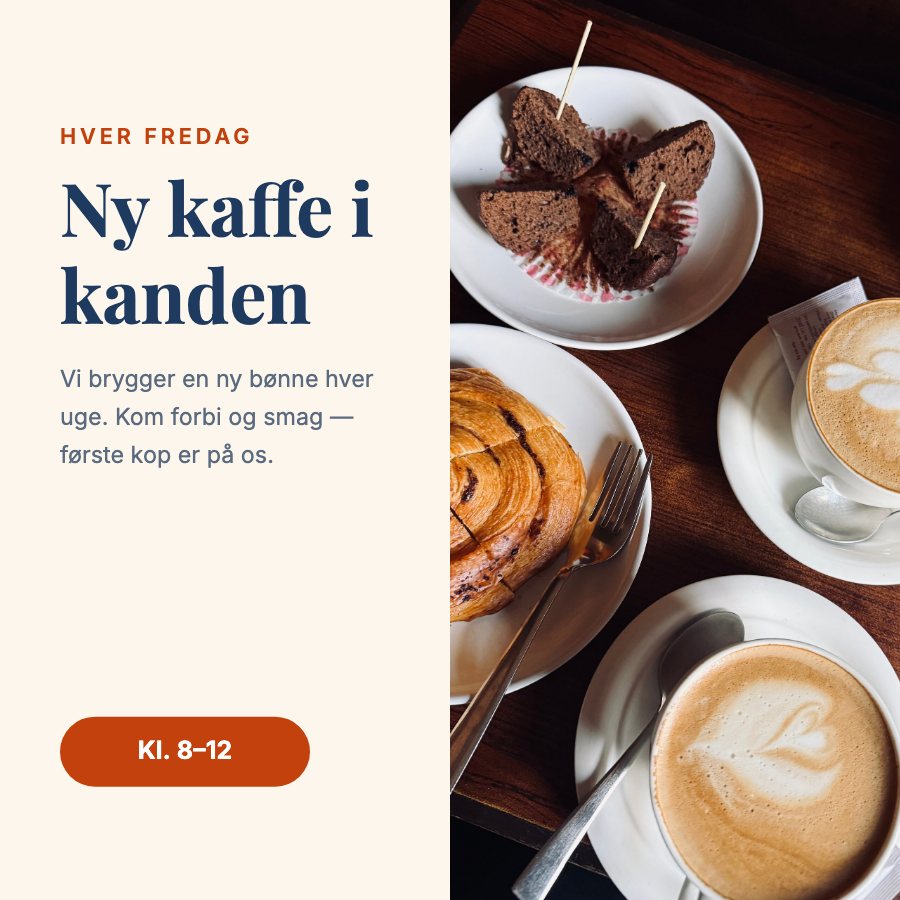
Here is your post. I chose a photo of coffee and your colours. Open it in the editor if you want to change anything.
 Open in the editor
How it works
-
Connect
Copy your address from Settings › AI assistants, paste it into your assistant and approve.
-
Describe
Say what you need and what it should say. The assistant chooses format, colours, fonts and pictures.
-
Keep editing
Ask for changes in the chat, or open the design in the editor. Download it as an image or PDF when it is ready.
An assistant that can actually design
-
The whole design in one go
The assistant builds the finished page with text, shapes, photos and icons, measured exactly as the editor draws it, so nothing overlaps.
-
Real photos and icons
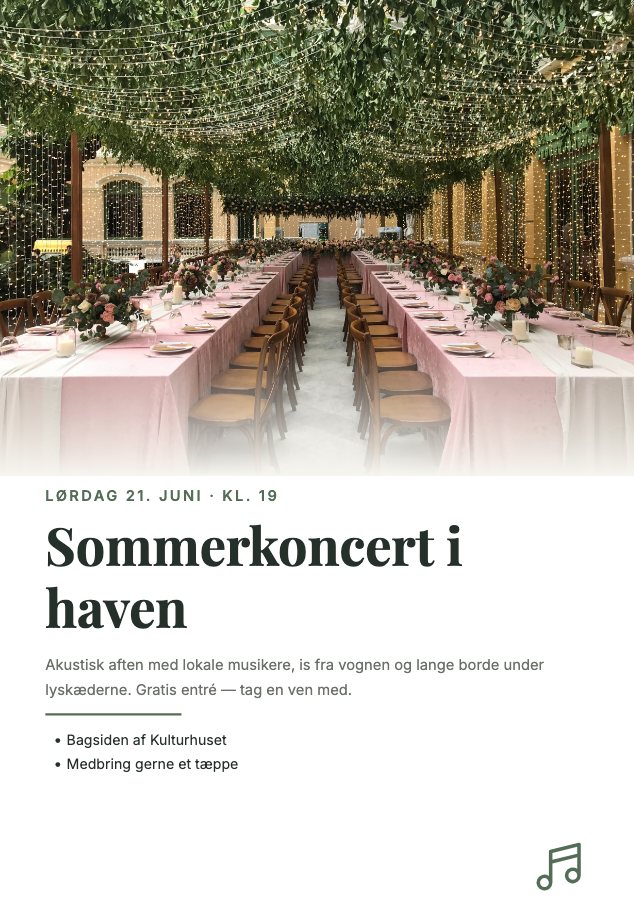
It searches thousands of free photos and more than 50,000 icons and chooses by looking at the picture, not just the name.
-
Your brand
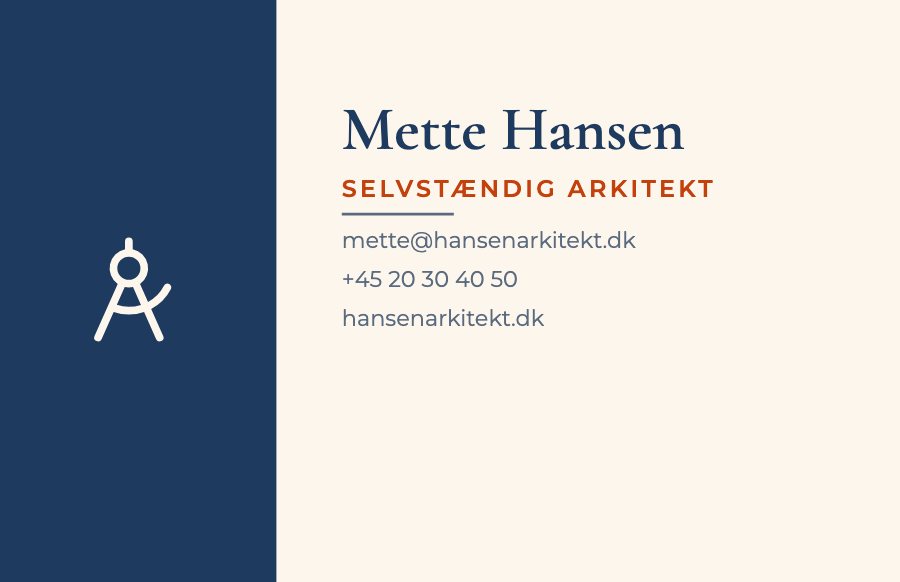
With Pro it uses the colours, fonts and logo from your brand kit, so everything looks like you.
-
Every format
Posts, stories, posters, flyers, business cards, invitations, menus and presentations, over several pages too.
-
Checks its own work
It looks at its design and runs the same quality check as our templates: text that gets cut off, contrast, resolution for print.
-
Live in your editor
The changes appear in your open editor straight away. Select an element and say “make it bigger”.
Connect in a minute
Your address is under Settings › AI assistants when you are signed in. It is the same for every assistant:
https://heymadeit.com/mcp
-
Claude
Go to Customize → Connectors, add a custom connector and paste the address.
-
ChatGPT
Go to Settings → Connectors, turn on developer mode and create a connector with the address.
-
Grok
Go to grok.com/connectors, choose Custom and paste the address.
Other assistants and apps that can use an MCP server connect the same way, or with an API key.
Free to try
Free
- 5 new AI designs a day
- Edit all your designs as much as you like
- Download as PNG, JPG and PDF
Pro
- 200 new AI designs a day
- Print-ready PDF files with bleed
- Your brand kit: colours, fonts and logo
- No watermark, in high resolution
Questions and answers
- Which assistants does it work with?
- Claude, ChatGPT and Grok, and any other assistant or app that can use an MCP server. You connect once with the address from your settings.
- Is it safe?
- You approve the connection yourself, and the assistant can only see and change your own designs. It can never see your password or payment details, and you can remove the connection with one click.
- What does it cost?
- Connecting is free. A free account can have 5 new designs made a day. With Pro you can have 200 made a day and fetch print-ready PDF files.
- Can the assistant make a file for print?
- Yes. With Pro the assistant fetches a print-ready PDF with bleed and crop marks. With a free account you get PNG, JPG and PDF.
- What if I don’t like the result?
- Ask the assistant to fix it, or undo the change. The design is in your editor, so you can always keep editing yourself.